
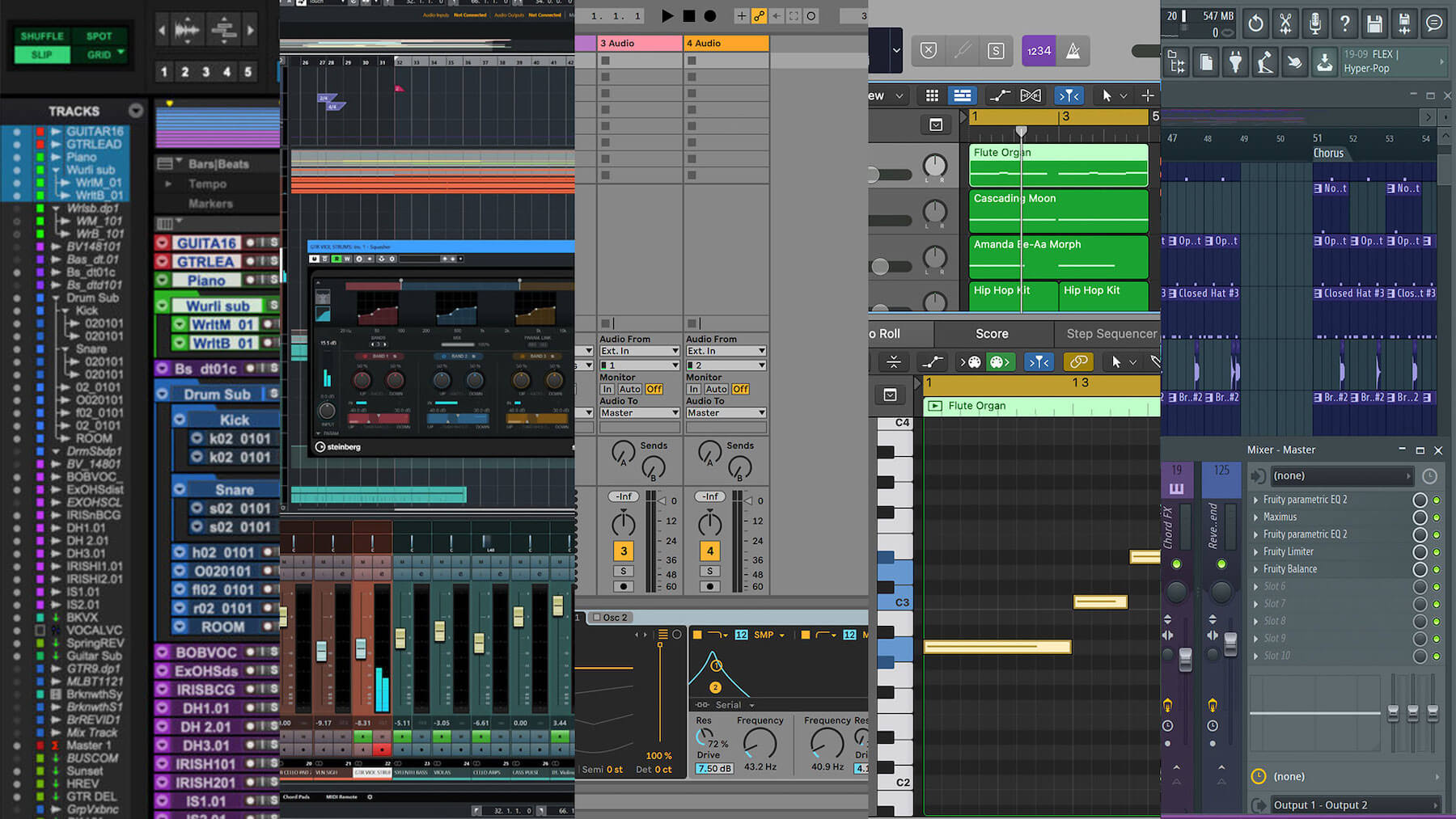
Want to record your first song, produce electronic music, make beats, or experiment with virtual instruments? You do not need an expensive recording studio to get started. The best free digital audio workstations (DAWs) let you arrange music, record audio, edit MIDI, apply effects, and export finished tracks from your computer.
This guide compares the best free DAWs for beginners, including their operating system compatibility, standout features, limitations, and ideal use cases. Whether you use Windows, macOS, Linux, or a web browser, you can find a suitable starting point.
Best Free DAWs for Beginners Compared
A digital audio workstation is the central software used to create, record, arrange, and mix music. However, free DAWs differ in their workflows and capabilities. Some are designed for electronic music, while others excel at recording vocals, guitar, or complete bands.
| DAW | Platforms | Best For | Free Version | Learning Curve |
|---|---|---|---|---|
| GarageBand | Mac, iPhone, iPad | Songwriting and beginners | Free on supported Apple devices | Easy |
| Waveform Free | Windows, macOS, Linux | Full music production | Free edition; optional paid products | Moderate |
| Cakewalk Sonar | Windows | Recording and mixing | Free core tier; optional membership features | Moderate |
| LMMS | Windows, macOS, Linux | Beats and electronic music | Free and open source | Easy to moderate |
| BandLab Studio | Web browser, mobile | Quick projects and collaboration | Free core studio with optional paid features | Easy |
| Audacity | Windows, macOS, Linux | Audio recording and editing | Free and open source | Easy |
| Pro Tools Intro | Windows, macOS | Learning a traditional recording workflow | Free entry-level edition; feature limits apply | Moderate |
Free plans and system requirements can change. Check each developer’s official website for current availability, supported operating systems, and feature limits before downloading.
1. GarageBand: Best Free DAW for Mac Beginners
Platforms: macOS, iOS, iPadOS
Price: Free on supported Apple devices
GarageBand is one of the easiest ways to start producing music. Its accessible interface, virtual instruments, built-in loops, guitar effects, and recording tools help beginners create songs without first learning a complicated studio environment.
You can build drum patterns, record vocals, play software instruments, arrange multiple tracks, and mix a song. The included sound library gives new producers material to experiment with even if they do not own a MIDI keyboard or musical instruments.
Pros
- Beginner-friendly interface and built-in tutorials.
- Useful instruments, loops, and guitar processing tools.
- Good for songwriting, demos, podcasts, and home recording.
- Projects can be moved into Logic Pro workflows.
Cons
- Not available as a native Windows or Linux application.
- Third-party plug-in support uses Apple’s Audio Units format rather than VST.
- Some advanced production and mixing workflows require other software.
Our verdict: If you already own a Mac and want to make your first complete song, GarageBand is an excellent first choice.
Visit GarageBand2. Waveform Free: Best All-Round Free DAW
Platforms: Windows, macOS, Linux
Price: Free edition available
Waveform Free from Tracktion is a strong option for beginners who want a full production environment without committing to a paid DAW. It offers a modern workflow for arranging audio and MIDI, working with virtual instruments, and mixing tracks.
Its cross-platform support makes it especially useful if you might change computers or work with musicians using different operating systems. It is also a sensible choice for producers who want to learn a workflow that can grow with their skills.
Pros
- Available on the major desktop operating systems.
- Supports audio recording, MIDI sequencing, and plug-in workflows.
- Useful for songwriting, electronic music, and home recording.
- Offers a path toward more advanced production features.
Cons
- The interface may take longer to learn than a simpler mobile or browser studio.
- Some extra instruments, content, or features may be sold separately.
Our verdict: Choose Waveform Free if you want one flexible DAW for learning recording, arranging, MIDI, and mixing on a desktop computer.
Get Waveform Free3. Cakewalk Sonar: Best Free DAW for Windows Recording
Platforms: Windows
Price: Free core tier with optional paid membership features
Cakewalk Sonar is a powerful option for Windows users interested in recording vocals, guitars, keyboards, and other instruments. Its traditional studio layout makes it useful for learning track management, editing, MIDI sequencing, effects, and mixing.
It is worth distinguishing the current Cakewalk Sonar product from the older Cakewalk by BandLab application. The original product’s availability and support status changed, so new users should download the current version through the official Cakewalk website.
Pros
- Designed for detailed recording, editing, and mixing.
- Supports virtual instruments and compatible plug-ins.
- Useful for multi-track projects and more advanced arrangements.
- Offers a free way to explore a professional-style workflow.
Cons
- Windows-focused, unlike cross-platform alternatives.
- Its many controls may initially feel overwhelming.
- Some capabilities and extras may require a paid membership.
Our verdict: Consider Cakewalk Sonar if you use Windows and want to learn the techniques used in a traditional recording studio.
Explore Cakewalk4. LMMS: Best Free DAW for Beats and Electronic Music
Platforms: Windows, macOS, Linux
Price: Free and open source
LMMS is built around electronic music production. Its piano roll, beat and bassline editor, built-in instruments, and effects make it particularly appealing to beginners creating hip-hop beats, synth-based music, EDM, or loop-driven arrangements.
You can program melodies, create drum patterns, arrange patterns on a timeline, and shape sounds with effects. Because LMMS is open source, you can use it without paying for a commercial license.
Pros
- Free to use without a subscription.
- Strong tools for MIDI sequencing and programmed beats.
- Works across Windows, macOS, and Linux.
- Includes instruments and effects for getting started.
Cons
- Not the best choice if your main priority is recording live vocals or bands.
- Audio recording workflows are more limited than in traditional recording DAWs.
- Its workflow differs from some commercial music production applications.
Our verdict: LMMS is an excellent starting point if you want to create beats, melodies, and electronic arrangements without paying for software.
Download LMMS5. BandLab Studio: Best Free DAW Without Installing Software
Platforms: Web browser and mobile
Price: Free core features; optional paid membership
BandLab Studio lets you create music directly in a supported web browser, making it convenient if you do not want to install a large application. You can record audio, arrange loops, use virtual instruments, apply effects, and work on projects with other musicians.
Its browser-based workflow is also useful for students, casual creators, and beginners who want to experiment before investing in dedicated recording equipment.
Pros
- No traditional desktop installation required for the browser studio.
- Accessible from supported devices and locations.
- Useful for collaboration and sharing projects.
- Good for quickly experimenting with loops and song ideas.
Cons
- Some features depend on an internet connection.
- Advanced content and tools may be restricted to paid membership.
- Browser performance depends on your device and project size.
Our verdict: Start with BandLab if convenience, collaboration, and avoiding installation matter more than advanced desktop studio features.
Try BandLab6. Audacity: Best Free Tool for Recording and Editing Audio
Platforms: Windows, macOS, Linux
Price: Free and open source
Audacity is widely used to record, cut, clean up, and edit audio. It is useful for recording vocals, editing podcasts, trimming samples, reducing unwanted noise, and preparing audio files for use in another music production program.
Although Audacity supports multitrack audio and effects, it is not a full substitute for a DAW designed around composing songs with virtual instruments and MIDI arrangements. For that reason, it works best as a companion tool or a simple audio recorder.
Pros
- Free and open source across major desktop operating systems.
- Useful editing, recording, and audio cleanup tools.
- Good for podcasts, voice recordings, and sample preparation.
- Helpful for learning basic audio editing techniques.
Cons
- Less suitable for composing complete instrument-based songs.
- Does not provide the same integrated MIDI and virtual-instrument workflow as a full DAW.
Our verdict: Choose Audacity for editing recorded sound. If you want to compose, sequence drums, and build arrangements with software instruments, choose a full DAW instead.
Download Audacity7. Pro Tools Intro: A Free Introduction to Studio Recording
Platforms: Windows, macOS
Price: Free entry-level edition
Pro Tools Intro introduces beginners to the recording and editing workflow associated with the Pro Tools ecosystem. It can be useful if you want to learn multitrack recording, basic mixing, and the terminology used in professional audio production.
Because this is an entry-level edition, it has restrictions compared with paid versions. Check the current track counts, plug-in availability, system requirements, and export options before deciding whether it suits your project.
Pros
- Provides an introduction to a widely recognized audio production workflow.
- Useful for learning recording and editing fundamentals.
- Can be a starting point for users considering the broader Pro Tools ecosystem.
Cons
- Free-edition limits may constrain larger projects.
- Beginners interested mainly in electronic music may prefer a more beat-focused DAW.
Our verdict: Consider Pro Tools Intro if learning a conventional recording workflow is a priority. Compare its current limits with Waveform Free and Cakewalk Sonar before committing.
Explore Pro ToolsWhich Free DAW Should You Choose?
Answer these three quick questions to narrow down the options based on your computer and music production goals.
Your recommendation
Select your preferences and click “Find My DAW” to see a recommendation.
What Should Beginners Look for in a Free DAW?
1. Audio recording and editing
If you plan to record vocals, acoustic instruments, or electric guitar, choose a DAW that supports audio tracks, waveform editing, latency settings, and external audio interfaces. Cakewalk Sonar, Waveform Free, and GarageBand are useful starting points for these tasks.
2. MIDI sequencing and virtual instruments
MIDI allows you to create musical performances using a piano roll or a MIDI keyboard. The DAW triggers software instruments to produce the actual sound. If you want to program drums, compose melodies, or build electronic arrangements, prioritize a DAW with a comfortable piano roll and reliable instrument support.
3. Built-in effects
Effects such as EQ, compression, reverb, delay, and distortion help you shape your sound. Built-in tools are usually enough to learn the fundamentals of mixing. You do not need to buy a large collection of plug-ins before you start making music.
4. Plug-in compatibility
Third-party plug-ins can add instruments, synthesizers, and audio effects. Compatibility varies: many Windows DAWs support VST3, while GarageBand uses Audio Units on Apple systems. Always check the plug-in format supported by both your DAW and your operating system.
5. Export options and licensing
Make sure you can export your finished work in a format suitable for your needs, such as WAV or MP3 where supported. Also review the license terms for any included loops, samples, and instruments if you plan to release music commercially. The software being free does not automatically mean every included sound has unrestricted licensing.
6. System requirements
A beginner does not necessarily need an expensive computer. However, larger projects with many instruments and effects require more processing power and memory. Check the current requirements and start with a modest project if your computer is older.
Free DAW vs. Paid DAW: Do You Need to Upgrade?
Most beginners can learn music production and complete real projects using free software. A paid DAW becomes worth considering when you need a specific feature, a more efficient workflow, professional collaboration compatibility, or a particular instrument library.
| Requirement | Is a Free DAW Enough? |
|---|---|
| Learning songwriting and arrangement | Yes. Free tools are more than adequate. |
| Making beats and electronic music | Yes. LMMS, Waveform Free, and other options can get you started. |
| Recording vocals and guitar at home | Yes, provided your DAW supports your recording needs and hardware. |
| Using a particular premium plug-in | Maybe. Check plug-in compatibility and license requirements. |
| Working on large, specialized studio projects | Possibly. Paid features or a different workflow may become useful. |
The smartest approach is to choose one free DAW, learn its basic workflow, and upgrade only when you can identify a real limitation that affects your work.
How to Make Your First Song with a Free DAW
You can begin producing music without expensive equipment. Follow these steps to turn a simple idea into a finished demo.
- Install or open your DAW. Download it from the developer’s official website or open a browser-based studio.
- Start a new project. Choose a tempo that suits your idea. Around 90–110 BPM works for many slower pop and hip-hop ideas, while faster electronic styles often use higher tempos.
- Create a drum pattern. Use a built-in drum instrument, a loop, or a virtual drum kit to establish the rhythm.
- Add a melody or chord progression. Draw notes in the piano roll, use a MIDI keyboard, or record a real instrument.
- Record vocals or another instrument. Use a built-in microphone for a quick demo or an audio interface and microphone for a more controlled recording.
- Arrange your sections. Build an introduction, verse, chorus, and ending, or use another structure that suits your style.
- Mix the tracks. Adjust volume, panning, and basic EQ. Add reverb or other effects sparingly.
- Export your song. Save a project copy and export an audio file using a format and quality supported by your DAW.
Equipment You Need to Start Producing Music
Free DAW software can take you a long way, and you can begin with equipment you already own. These are the most useful upgrades if you decide to build a home studio.
- Computer: A supported Windows PC, Mac, or Linux computer with enough memory and processing power for your chosen software.
- Headphones: Closed-back headphones can help when recording vocals because they reduce sound leakage into the microphone.
- Audio interface: Useful for recording a microphone or instrument and monitoring with lower latency.
- Microphone: Optional if you are only making instrumental music, but valuable for vocals, acoustic instruments, and podcasts.
- MIDI keyboard: Optional. It makes playing melodies and chords more intuitive, but you can also use the piano roll.
- Studio monitors: Helpful for mixing, although good headphones are a reasonable starting point.
You do not need to purchase all this equipment immediately. Start with the software, learn its workflow, and invest in hardware when your projects require it.
Frequently Asked Questions About Free DAWs
What is the best free DAW for absolute beginners?
GarageBand is an excellent option for beginners using a Mac or supported Apple mobile device. Windows users can explore Waveform Free or Cakewalk Sonar, while BandLab is convenient if they prefer working in a browser.
What is the best free DAW for Windows?
Waveform Free is a versatile cross-platform choice, while Cakewalk Sonar is worth considering for Windows-focused recording and mixing. LMMS is particularly useful for beat-making and electronic music.
What is the best free DAW for making beats?
LMMS is a strong starting point for programming drums, building melodies, and creating electronic arrangements. Waveform Free and BandLab are also worth considering depending on your preferred workflow.
Can I make professional music with a free DAW?
Yes. A free DAW can be used to create, record, arrange, and mix music for release. The final result also depends on your performance, recording conditions, arrangement, mixing decisions, and the quality of your source material.
Are free DAWs safe to download?
Download directly from the official developer’s website or a trusted app store. Avoid suspicious download portals and installers that bundle unwanted software. Check system requirements and license terms before installing.
Can I sell music made with a free DAW?
Often, yes, but check the terms of the software and any third-party sounds, loops, samples, or plug-ins you use. Commercial usage rights depend on the applicable licenses, not simply on whether the DAW costs money.
Is Audacity a full DAW?
Audacity is primarily a multitrack audio recorder and editor. It is useful for audio cleanup, voice recording, and editing, but it does not offer the same integrated MIDI composition and virtual-instrument workflow as a traditional music production DAW.
Do I need a MIDI keyboard to use a DAW?
No. Most music production DAWs allow you to draw notes in a piano roll or program patterns with your mouse. A MIDI keyboard is optional and can make playing melodies and chords more natural.
Final Verdict: Which Free DAW Should You Download?
The best free DAW is the one that matches your computer, music style, and preferred way of working. You do not need to master every application or spend money before learning the basics.
- For Mac beginners: Start with GarageBand.
- For a flexible desktop studio: Try Waveform Free.
- For Windows recording and mixing: Explore Cakewalk Sonar.
- For electronic beats: Try LMMS.
- For browser-based music creation: Start with BandLab Studio.
- For audio editing and podcasts: Download Audacity.
- For learning a traditional recording workflow: Consider Pro Tools Intro.
Pick one program, create a small project, and learn how to record, arrange, mix, and export it. Once you can finish songs consistently, you will have a much clearer idea of which advanced features are worth paying for.